> For the complete documentation index, see [llms.txt](https://docs.esignet.io/llms.txt). Markdown versions of documentation pages are available by appending `.md` to page URLs; this page is available as [Markdown](https://docs.esignet.io/home/esignet-2.0.0/local-deployment/try-it-out/end-user-guide/health-portal/login-with-otp.md).
# Login with OTP
{% hint style="success" %}
**Prerequisites:**\
The resident is issued with a unique virtual ID for a country's foundation ID. In the below demo application, which is a health portal, the resident is registered with MOSIP and has a valid UIN or VID.
{% endhint %}
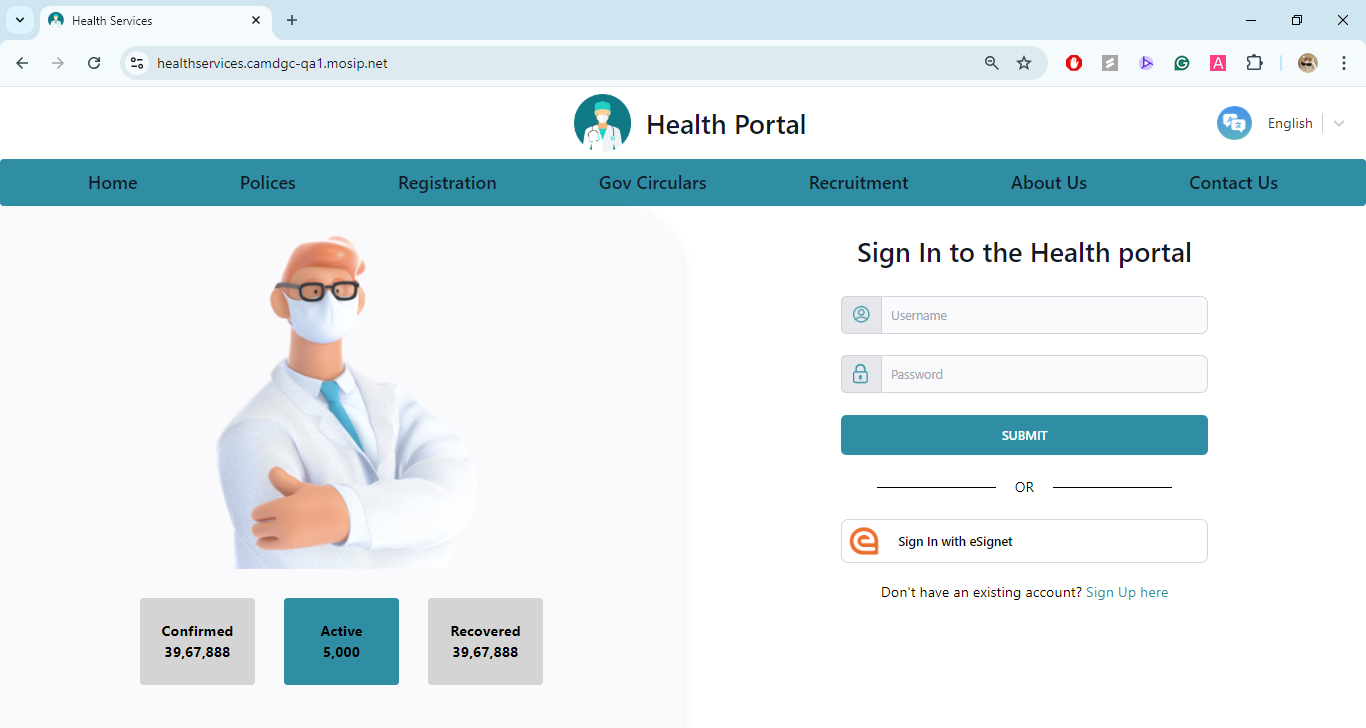
1\. On the portal, the resident clicks on the button ***Sign In with eSignet***.
Sign in with eSignet
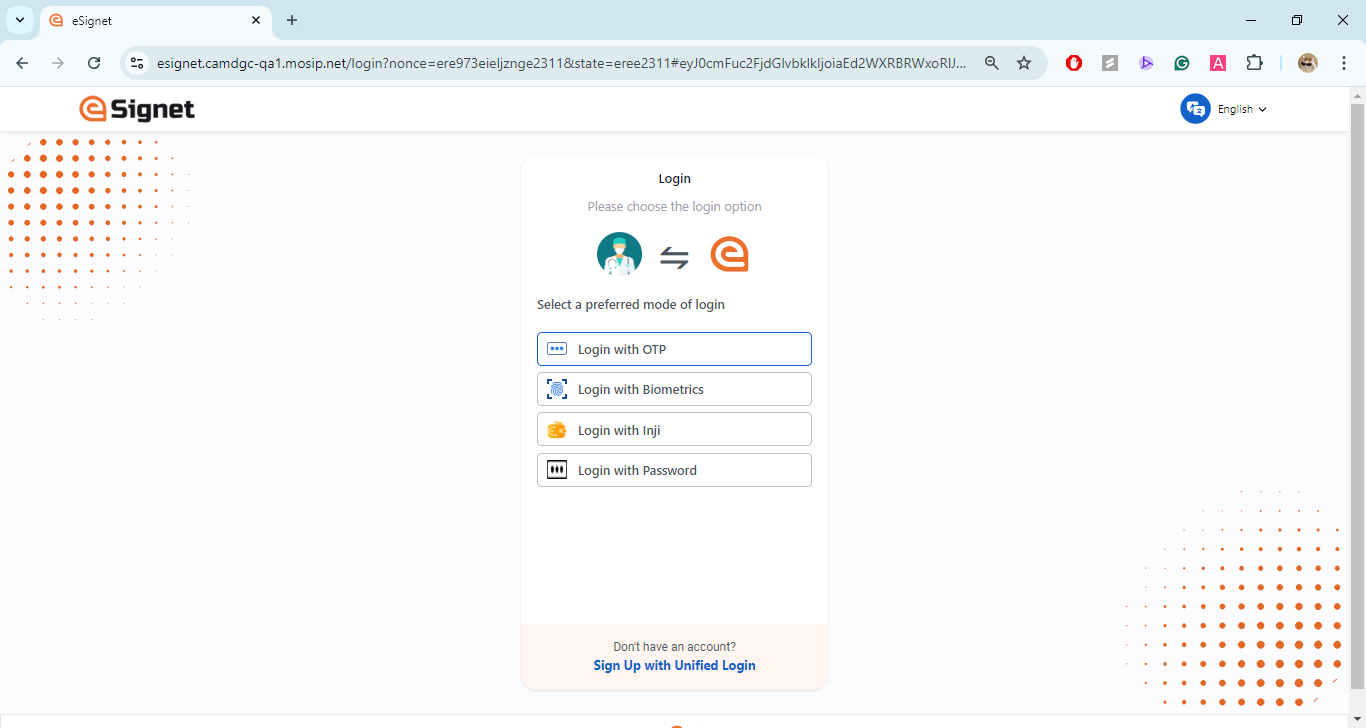
The login screen appears and the resident is displayed with the options they can choose for login.
2\. To get started with login with OTP authentication, the resident clicks on ***Login with OTP*** option.
Login with OTP
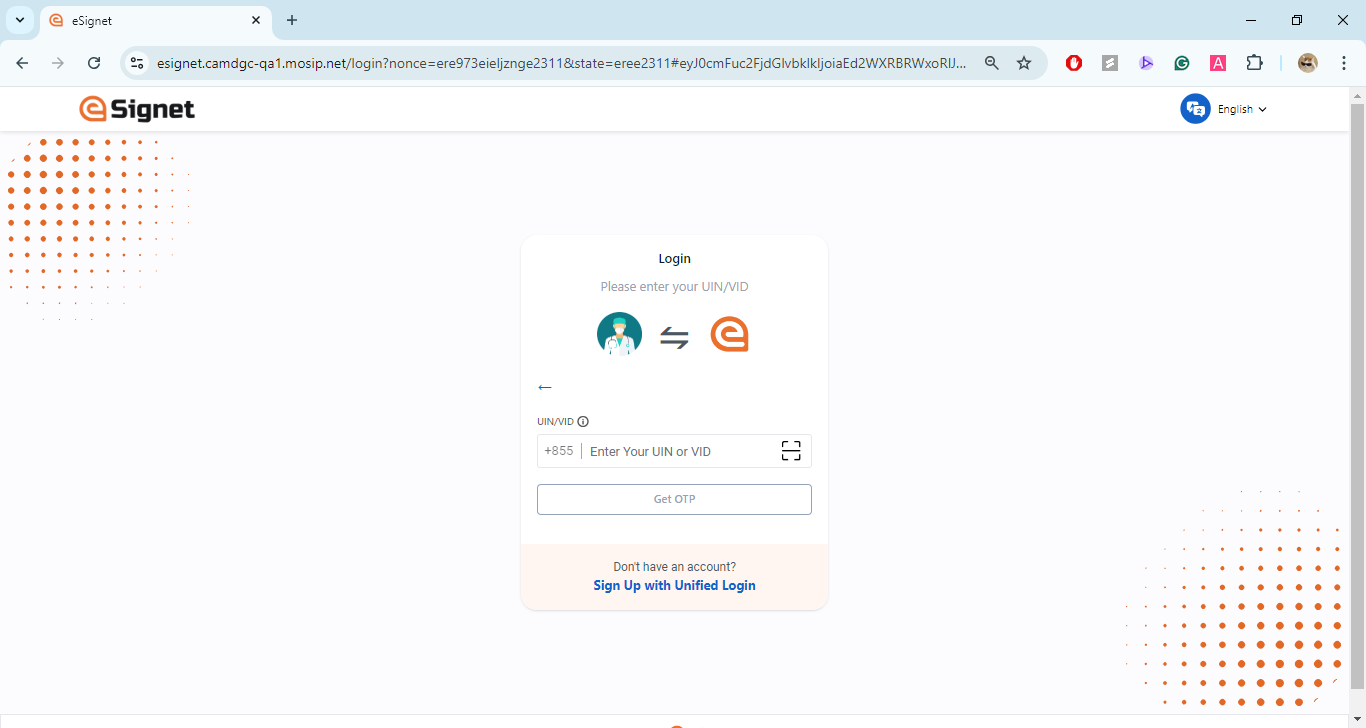
3\. The resident needs to enter a valid VID in the ***Enter Your VID*** text field and check the box 'I'm not a robot'.
{% hint style="info" %}
**Note:** The OTP-based authentication is now secured with a captcha.
{% endhint %}
Enter your UIN/VID
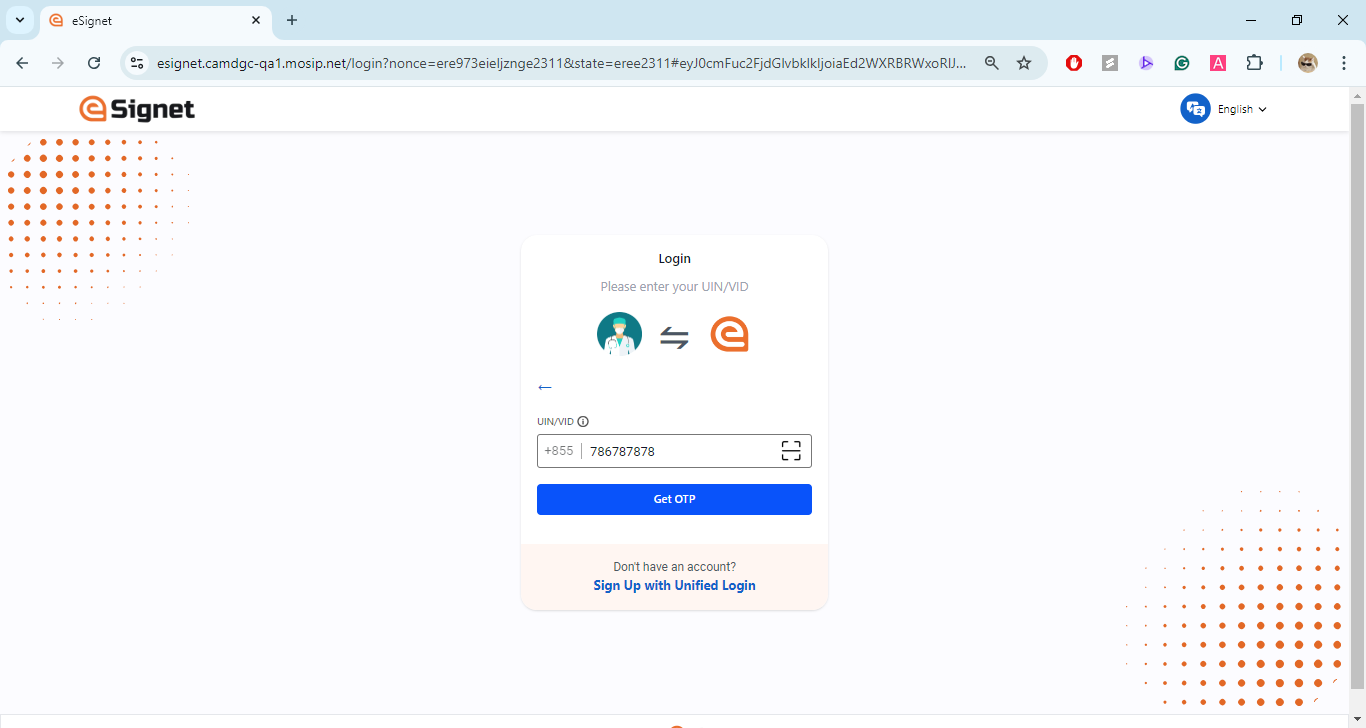
4\. Next, the resident clicks on the ***Get OTP*** button.
Get OTP Page
5\. The resident receives the OTP on the registered channel (either by phone or email).
{% hint style="info" %}
**Note: OTP Delivery Update for eSignet Login**\
Previously, the eSignet login flow in the MOSIP Collab (Sandbox) environment used a static OTP (`111111`) for easy self-experience by the community. As per the latest MOSIP platform deployment, OTP delivery now works as follows:
* If you registered with a **valid, accessible email address**, the **OTP will be sent to that email**. Please ensure you use a valid, accessible email ID during self-registration to receive it directly.
* If you did not add a valid email during registration, **you can still get an OTP!** Go to [smtp.collab.mosip.net](http://smtp.collab.mosip.net) **(public mailbox) to get the OTP.** (**Important:** You must refresh/reload the public mailbox ([smtp.collab.mosip.net](http://smtp.collab.mosip.net)) to clear any previous OTPs and then click Get OTP and use the newly received one to complete login.
{% endhint %}
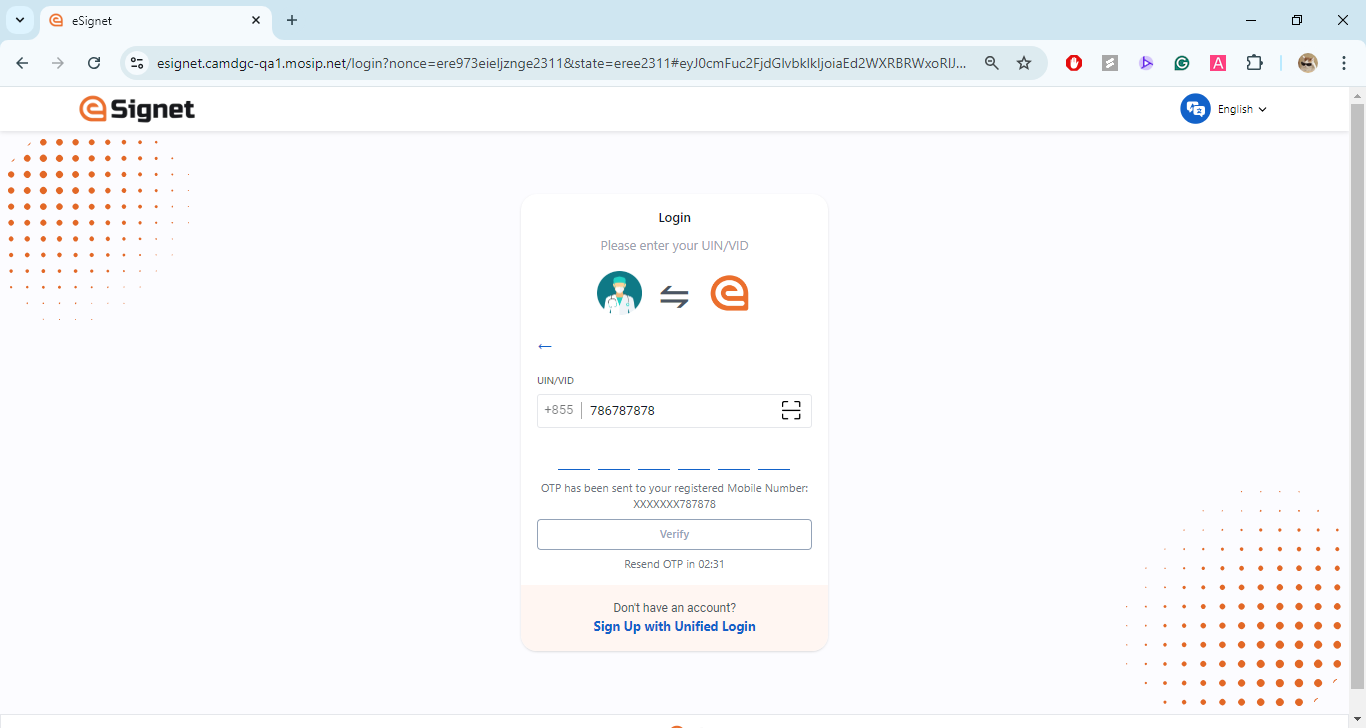
6\. The resident needs to enter the valid OTP received and click on the ***Verify*** button.
Verify OTP
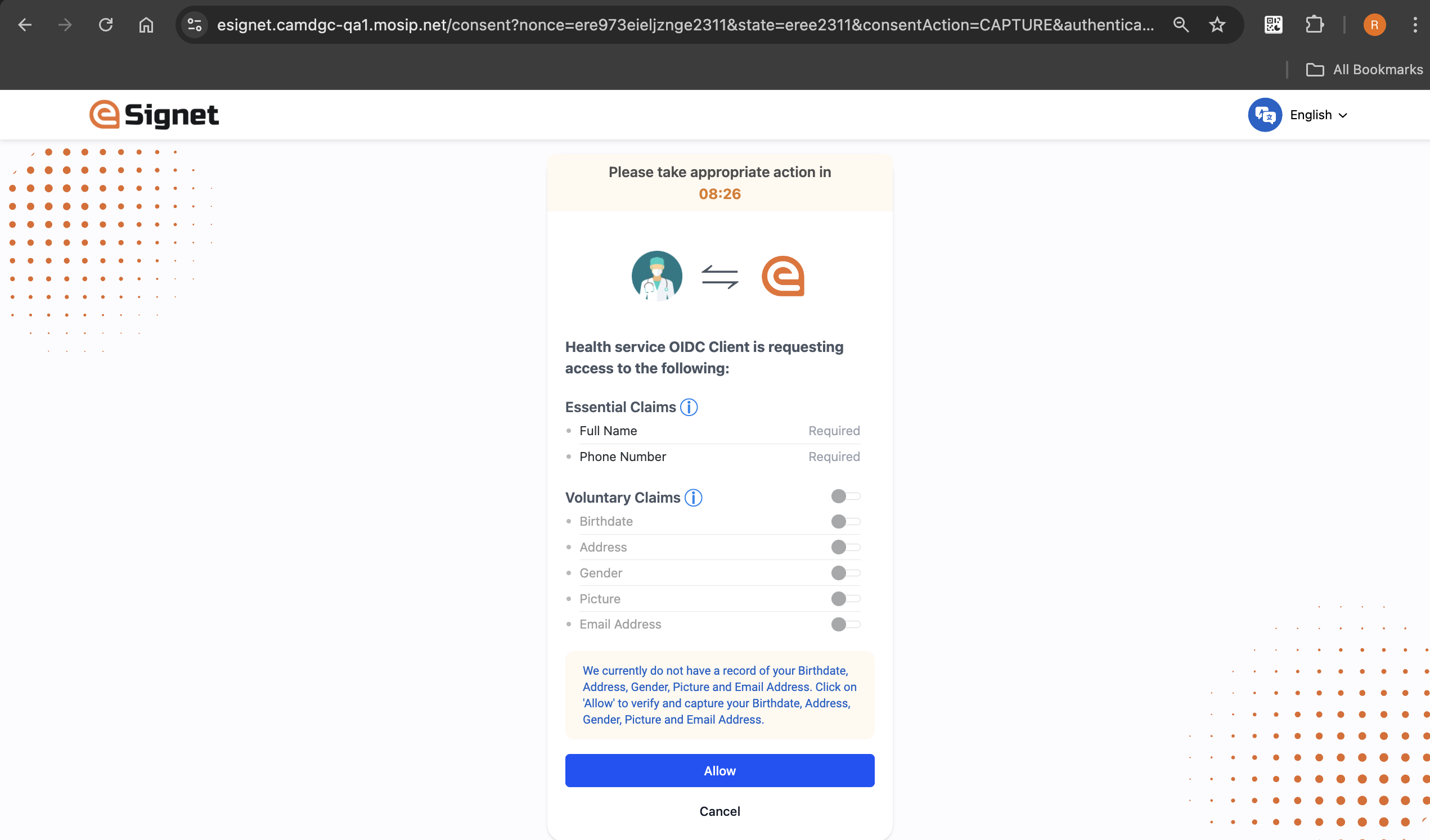
7\. The resident is then navigated to the Consent page. On this page, the **Essential** and **Voluntary** claims are displayed.
Voluntary Claims page
{% hint style="info" %}
The consent screen is presented solely to the resident if consent has not previously been obtained. Additionally, a timer is incorporated into the Consent screen, allowing the resident to respond within the designated time frame. If the allotted time elapses, residents will be redirected to the relying party user interface.
{% endhint %}
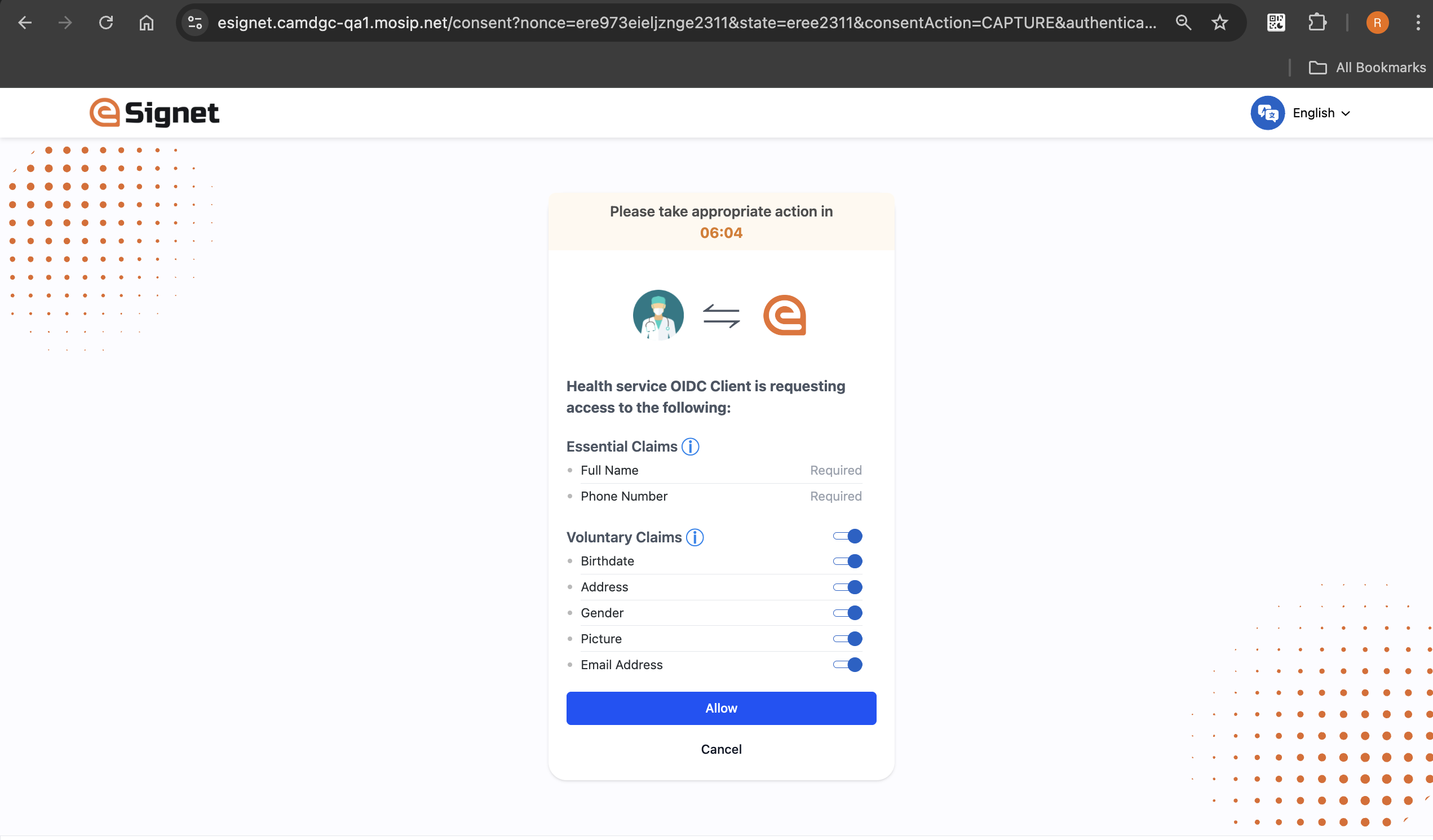
8\. The resident is given the option to choose from a list of Authorized scopes and Voluntary claims. The Essential claims are mandatory and cannot be modified. A **master toggle button** has been added to allow residents to select all the options at once if desired.
Vlountary Claims page
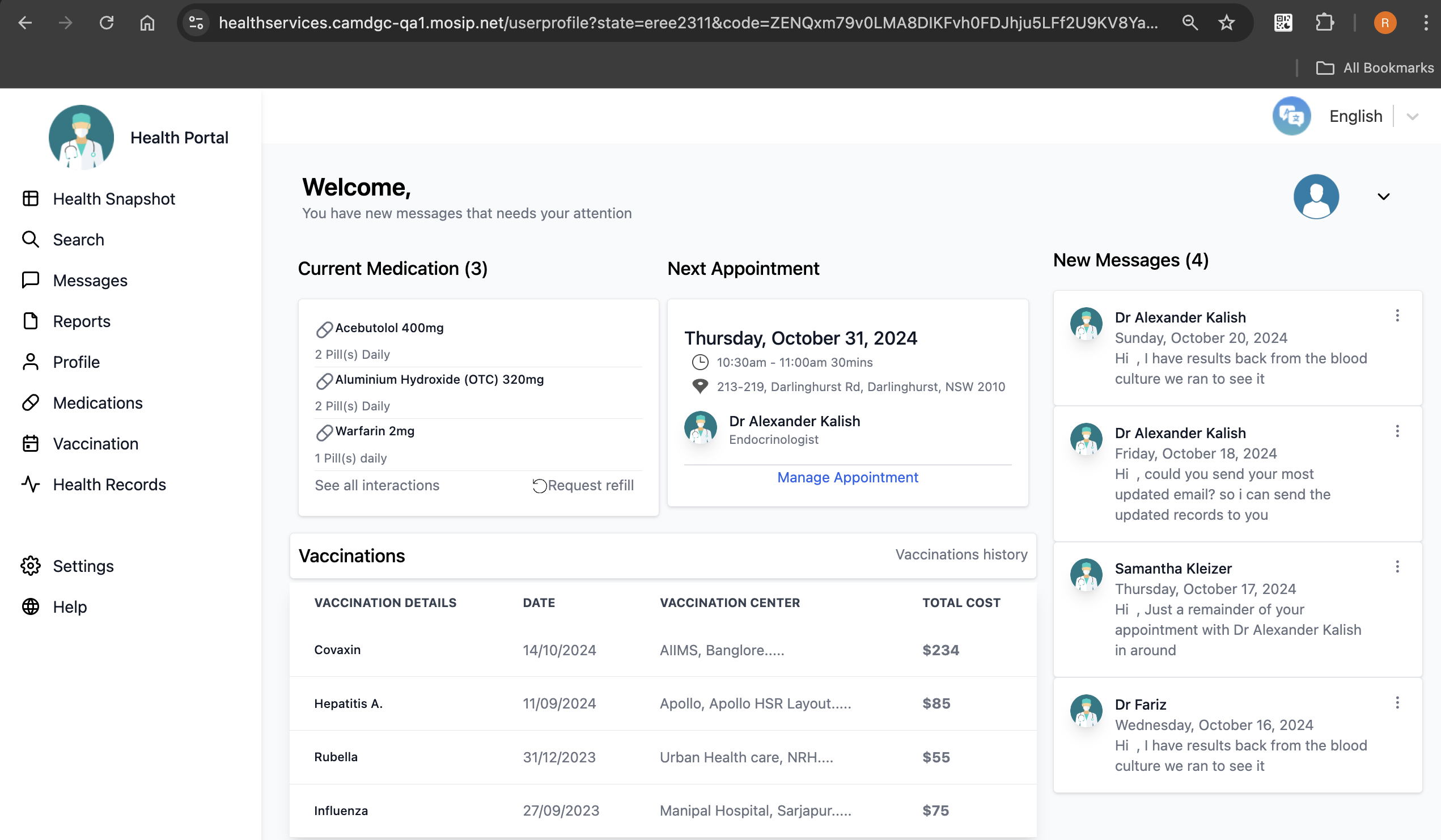
9\. The resident should now click the ***Allow*** button. The system navigates the resident to the **User Profile** page which displays all the personal information based on the consent provided.
Profile page
---
# Agent Instructions
This documentation is published with GitBook. GitBook is the documentation platform designed so that both humans and AI agents can read, navigate, and reason over technical content effectively. Learn more at gitbook.com.
## Querying This Documentation
If you need additional information that is not directly available in this page, you can query the documentation by asking a question.
Perform an HTTP GET request on the following URL with the `ask` and `goal` query parameters:
```
GET https://docs.esignet.io/home/esignet-2.0.0/local-deployment/try-it-out/end-user-guide/health-portal/login-with-otp.md?ask=&goal=
```
`ask` is the immediate question: it should be specific, self-contained, and written in natural language.
`goal` is what the user is ultimately trying to achieve, the reason they need the answer. Sharing it helps GitBook give you a better, more relevant answer. A goal is most helpful when it describes the outcome the user wants rather than restating the question. For example, with `ask=how do I create an API token`, a goal like `automate deployments from our CI pipeline` lets GitBook tailor the answer to that use case.
The response will contain a direct answer to the question and relevant excerpts and sources from the documentation.
Use this mechanism when the answer is not explicitly present in the current page, you need clarification or additional context, or you want to retrieve related documentation sections.